
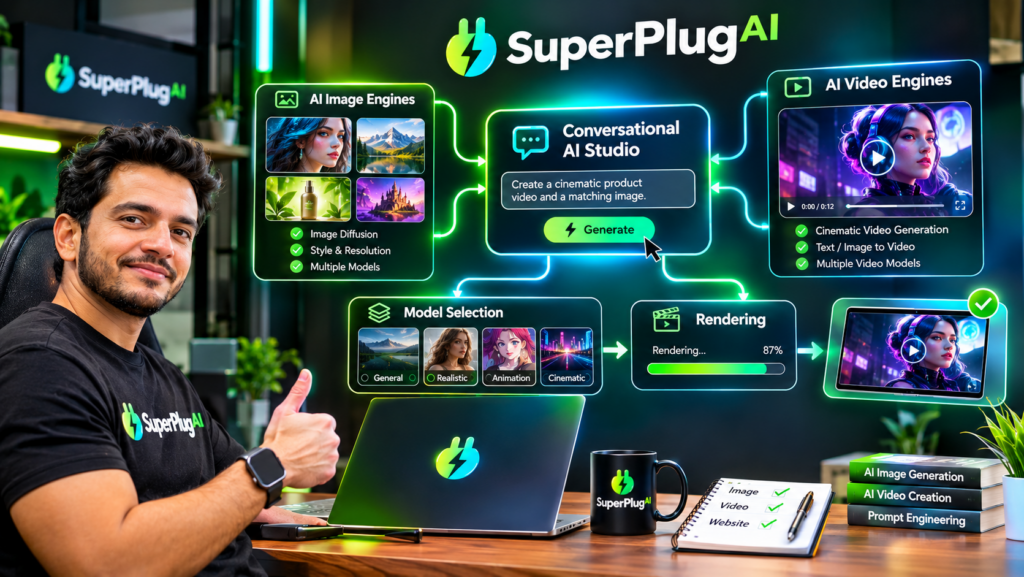
To connect Stability AI, fal.ai and Runware to SuperPlug AI, use the platform’s bring-your-own-API-key integrations: obtain an API key from each provider, add the credentials through the relevant SuperPlug AI connection settings, and then request supported creative tasks through your connected AI assistant. SuperPlug AI’s product information lists all three services as supported own-account integrations, allowing you to bring their capabilities into the same conversational workflow. Explore SuperPlug AI and its connected creative tools.
This guide explains what you need, how to prepare each API connection, what to check when connecting the providers, and how to use them together without exposing your credentials.
What Do Stability AI, fal.ai and Runware Do Inside SuperPlug AI?
These services provide access to AI-powered creative models and media-generation capabilities. Instead of treating each provider as an entirely separate production destination, SuperPlug AI is designed to let you access supported services through your AI conversation using your own API credentials.
- Stability AI: Provides generative AI tools, including image-generation capabilities that can support product visuals, marketing graphics and other creative assets.
- fal.ai: Provides access to a range of generative media models and inference workflows, depending on the models and services available to your account.
- Runware: Provides APIs for generative media workflows, including image-generation models and related creative capabilities.
Key takeaway: SuperPlug AI’s launch materials list Stability, fal.ai and Runware among the services users can connect with their own keys. The specific models and tasks available depend on the provider, your credentials and the integration supported by your account.
What You Need Before Connecting the Three Providers
Prepare the following before setting up your connections:
- An active SuperPlug AI account with access to the relevant own-key integrations.
- An account with Stability AI, fal.ai and/or Runware, depending on which services you want to use.
- A valid API key from each provider you intend to connect.
- Access to the SuperPlug AI connection or integration settings.
- A connected AI assistant, such as ChatGPT, Claude or Grok, for requesting supported tasks through the SuperPlug workflow.
You do not necessarily need to connect all three providers at once. If you are new to API integrations, start with one provider, confirm that the connection works, and then add the others.
How to Connect Stability AI to SuperPlug AI
- Create or access your Stability AI account. Sign in to the provider account you intend to use.
- Generate an API key. Locate the provider’s API or developer credentials area and create a key according to its instructions.
- Open your SuperPlug AI integration settings. Find the supported own-key connection area for Stability AI.
- Add your credentials. Enter the API key in the designated field and follow the platform’s connection or authentication instructions.
- Check the connection. Confirm that the integration is accepted before requesting a creative task that uses the provider.
Once connected, you can ask your supported AI assistant to use the available Stability AI capabilities for an appropriate image or creative-generation task.
How to Connect fal.ai to SuperPlug AI
The general setup follows the same bring-your-own-key approach:
- Sign in to your fal.ai account.
- Locate the account’s API key or developer credentials section.
- Create or copy an API key using the provider’s recommended process.
- Open the fal.ai integration option in SuperPlug AI’s own-account connection settings.
- Enter the key in the designated credential field and complete any required connection steps.
- Confirm that the integration is available before requesting a fal.ai-powered workflow.
fal.ai offers access to different generative models, so specify the type of output you want when making a request. Model availability, usage limits and charges are governed by the provider and the particular service you use.
How to Connect Runware to SuperPlug AI
To add Runware, follow the same credential-based process:
- Access your Runware account.
- Generate or retrieve your API key from its account or developer settings.
- Open SuperPlug AI’s supported provider integration area.
- Select the Runware connection option, where available.
- Enter your API key and follow the displayed authentication instructions.
- Verify that SuperPlug AI recognises the connection before using it in a creative request.
After connecting, describe the image or media asset you want to create. Your connected assistant can then use the supported SuperPlug AI workflow to access the relevant provider capability.
Can You Use All Three Providers in One SuperPlug AI Workflow?
Yes, the purpose of connecting multiple supported providers is to make their available capabilities accessible within a more unified creative workflow. For example, you might request a product image using one connected provider, explore an alternative generation through another, and use the preferred result in a wider marketing project.
Before choosing a provider, review its available models, output formats, usage limits and pricing. If you want to explore the platform’s broader workflow, creative tools and account options, see the SuperPlug AI access details.
Important API Key Safety and Troubleshooting Tips
- Keep keys private: Never paste API credentials into public posts, shared prompts or screenshots.
- Use the correct provider key: A Stability AI key belongs to Stability AI, a fal.ai key belongs to fal.ai, and a Runware key belongs to Runware.
- Check account access: Confirm that your provider account and key have the permissions required for the intended task.
- Review provider billing: Your own API usage may be billed separately by the provider. The launch materials describe these own-key integrations as using zero SuperPlug credits, but that does not mean the external provider’s services are necessarily free.
- Recheck failed connections: If a connection fails, check for missing characters, revoked keys, permissions or provider-side usage restrictions.
- Follow the displayed setup instructions: The exact settings labels and authentication steps may vary. Use the current instructions shown in your account rather than assuming a particular menu path.
Frequently Asked Questions
Do I need separate API keys for Stability AI, fal.ai and Runware?
Yes. Each is a separate provider, so you need the appropriate credentials from each service you want to connect.
Does SuperPlug AI provide the API keys?
The integration model described in the product materials is bring-your-own-key. You obtain the credentials from the respective providers and connect your own accounts.
Do these integrations use SuperPlug AI credits?
The launch materials state that supported own-key services such as Stability, fal.ai and Runware can be used at zero SuperPlug credits. However, provider-side usage charges, limits or account requirements may still apply.
Can beginners connect these services?
Yes, provided they can create API credentials and follow the connection instructions in their accounts. You do not need to build an API integration from scratch, but you should handle credentials carefully.
Do I have to connect all three providers?
No. You can begin with the provider that best matches your intended creative task and add other supported integrations later.
Final Thoughts
Connecting Stability AI, fal.ai and Runware to SuperPlug AI gives you a way to bring supported external creative models into a more unified AI-assisted production process. The essential steps are to obtain each provider’s API key, add it through the corresponding SuperPlug AI integration settings, verify the connection and review any external usage costs before generating content.
If you want to understand how these integrations fit into the complete platform—including its features, creative workflows, pricing and upgrades—read the complete SuperPlug AI review and feature breakdown.
For the broader product overview and buying details, continue with the full SuperPlug AI review.