
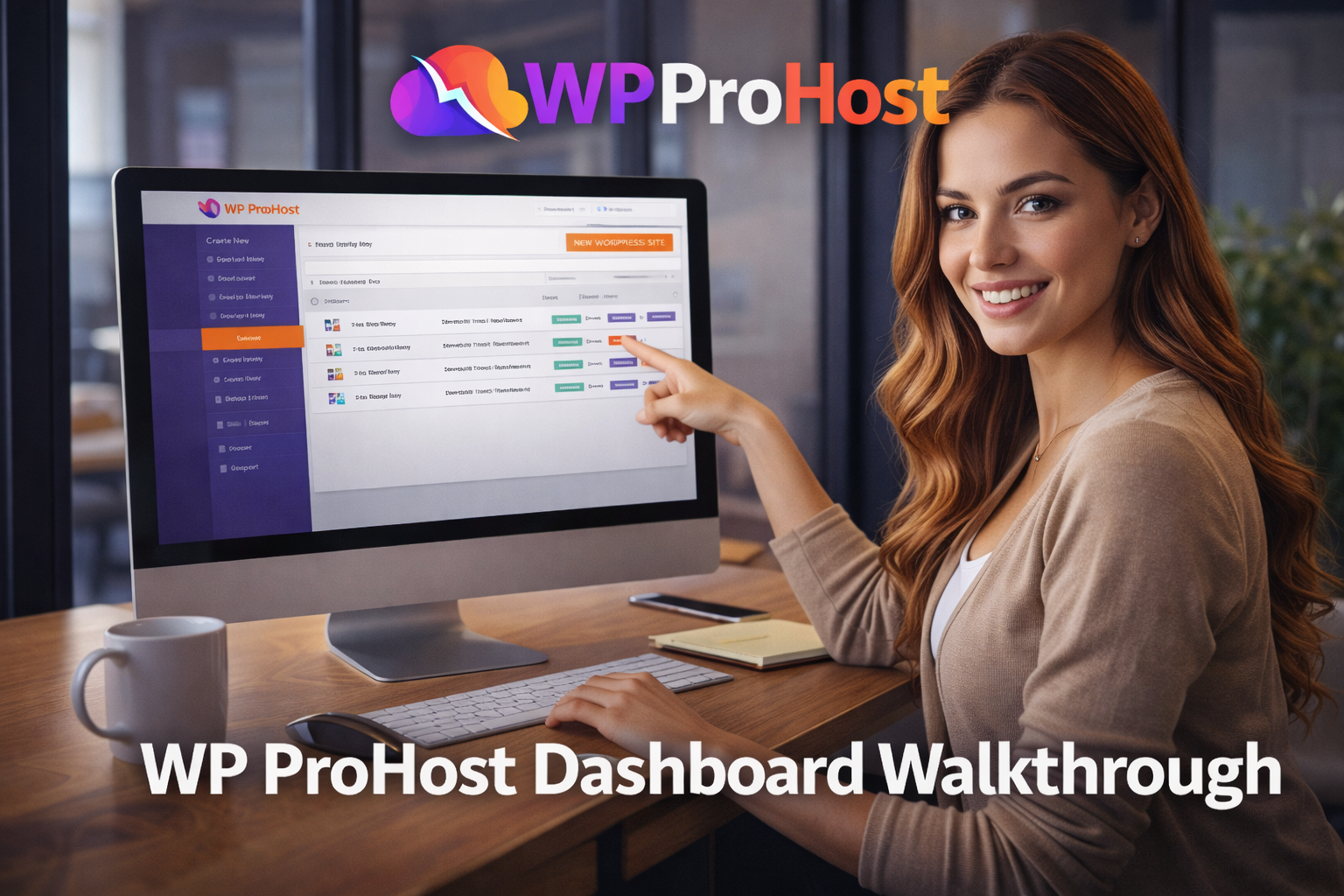
When people search for a WP ProHost demo or walkthrough, they are usually past the curiosity stage. They understand the lifetime hosting idea and now want to see how usable the platform really is. The underlying concern is simple: Does this actually work like a proper hosting service, or is it complicated to manage day to day?
👉 Read the complete WP ProHost review and lifetime deal breakdown
What You See First After Login
Once inside WP ProHost, you land on a centralized dashboard designed to manage everything from one place. This is important because many hosting tools become confusing once multiple sites are involved.
From the main interface, you can:
- Deploy new WordPress sites
- View existing installations
- Manage domains and subdomains
- Access backups and security tools
The layout is intentionally minimal. You don’t need to jump between separate panels for common tasks.
Creating a WordPress Site (The Actual Flow)

Setting up a WordPress site inside WP ProHost follows a straightforward sequence.
You start by selecting the option to create a new site. From there, the platform guides you through:
- Choosing a domain or subdomain
- Installing WordPress with one click
- Assigning admin credentials
There’s no manual database creation or file uploads involved. This is especially useful for marketers or agencies who need to spin up sites quickly without touching server-level settings.
Once installed, the site behaves like any standard WordPress installation. You can install themes, plugins, and custom code without restrictions.
Managing Multiple Sites From One Dashboard
One of the reasons people look for walkthroughs is to understand how multi-site management works in practice.
In WP ProHost, each site appears as a separate entry within the same account. From a single dashboard, you can:
- Access individual WordPress admin panels
- Monitor site status
- Manage backups centrally
This removes the need to log into separate hosting accounts or remember different credentials. For users managing several projects, this alone can save significant time.
Backups, Security, and Maintenance
A major concern with any hosting platform is what happens behind the scenes.
WP ProHost includes:
- Automated daily backups
- SSL certificates for secure connections
- Built-in malware protection
- Firewall-level safeguards
These features run in the background. You don’t need to configure them manually unless you want to customize settings further.
For many users, this reduces the need for additional paid plugins focused on security and backups.
Migrating Existing WordPress Sites
Another common demo-related question is whether existing sites can be moved safely.
WP ProHost supports WordPress migration through guided tools and support assistance. The goal is to move sites without downtime or SEO impact.
While migrations always require care, having access to support during the process helps reduce risk, especially for users unfamiliar with server transfers.
Day-to-Day Use: What It Feels Like
After setup, WP ProHost functions like a traditional managed WordPress host. You log in when you need to:
- Add new sites
- Update configurations
- Monitor performance
You don’t need to interact with it daily unless you’re actively building or managing projects. That’s often a sign of a well-designed hosting platform.
Who This Walkthrough Is Most Relevant For
This step-by-step view is particularly helpful for:
- Non-technical site owners
- Affiliate marketers launching multiple sites
- Agencies onboarding new client projects
- Entrepreneurs who want predictable workflows
If you’re comfortable using WordPress already, there’s little additional learning curve.
Final Thoughts on the WP ProHost Walkthrough
A demo doesn’t need to be flashy to be effective. It needs to answer one question: Can I realistically use this without friction?
WP ProHost’s workflow focuses on reducing setup complexity while keeping core WordPress flexibility intact. For users evaluating lifetime hosting, this walkthrough clarity often becomes the deciding factor.
👉 See the full WP ProHost review, pricing, demo, and bonuses