
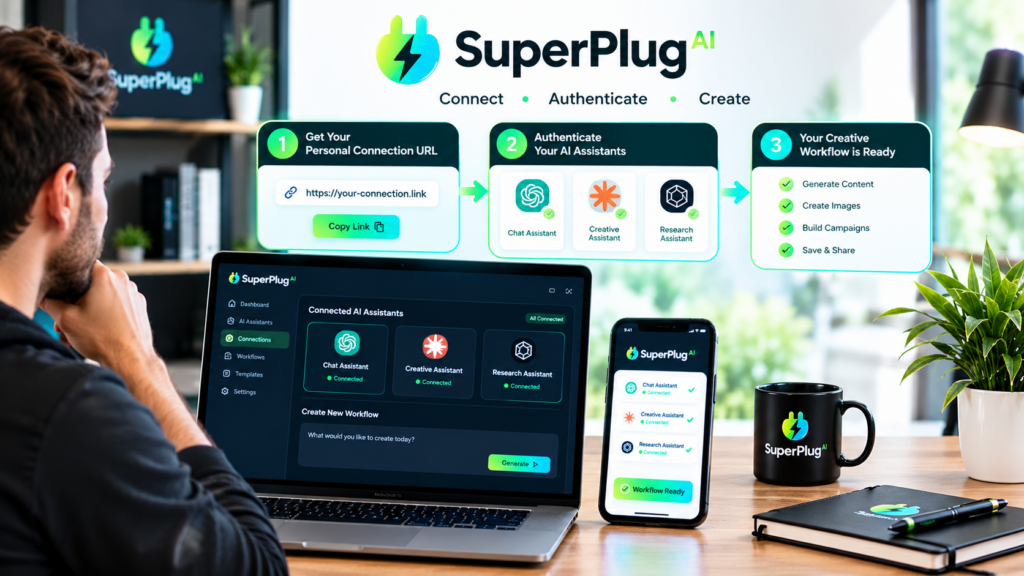
Yes, you can connect SuperPlug AI to ChatGPT, Claude and Grok using MCP (Model Context Protocol). The process involves adding your personal SuperPlug AI MCP connection to the AI assistant you want to use, completing authentication and enabling the connector. Once connected, your assistant can access SuperPlug AI’s available creative tools and workflows, allowing you to request video, image, graphic and other production tasks directly through a conversation. You can get SuperPlug AI and set up your own creative workspace to follow along.
The setup is designed to be straightforward, even if you have never worked with MCP before. Here is what MCP means, what you need before starting, and how to connect SuperPlug AI to each of the three supported AI assistants.
What Is MCP and Why Does SuperPlug AI Use It?
MCP stands for Model Context Protocol. It is a standard that allows AI assistants to communicate with external tools and services. Instead of limiting an AI assistant to answering questions or generating text, MCP allows it to access connected capabilities and perform supported actions.
Think of it this way: ChatGPT can help you write a video script, but a connected production tool can help turn that script into a finished video. MCP provides the communication layer that allows the AI assistant to access those external capabilities.
SuperPlug AI uses this approach to connect ChatGPT, Claude and Grok to its creative production environment. Depending on the available tools and your connected services, you can request tasks involving:
- AI video creation and promotional content.
- Image generation and graphic design.
- Website and landing-page creation.
- AI voiceovers and music production.
- Presentations and marketing materials.
- Social media content and supported publishing workflows.
The advantage is that you can describe the outcome you want in natural language instead of manually moving between multiple applications for every production step.
What Do You Need Before Connecting SuperPlug AI?
Before starting, make sure you have the following:
- An active SuperPlug AI account.
- Access to the personal MCP connection details provided inside SuperPlug AI.
- An account with ChatGPT, Claude or Grok.
- An internet connection and access to the relevant connector settings.
Important: The exact menus and MCP permissions can differ between AI platforms and account plans. ChatGPT, Claude and Grok do not use identical connection procedures, so follow the instructions for the assistant you intend to connect.
How to Connect SuperPlug AI to ChatGPT Using MCP
ChatGPT supports custom MCP connections, subject to account and workspace permissions. Here is the general connection process:
- Sign in to SuperPlug AI: Open your SuperPlug AI account and locate the personal MCP connection details or connection instructions.
- Copy the MCP endpoint: Copy the exact connection URL supplied for your account. Do not substitute a guessed URL.
- Open ChatGPT: Sign in to ChatGPT on the web and navigate to the available Plugins or custom MCP connection settings.
- Add a custom MCP server: Select the option to add a custom MCP server or plugin.
- Enter the connection details: Give the connection a recognisable name, such as SuperPlug AI, and enter the supplied endpoint.
- Complete authentication: Follow the authentication instructions and review the permissions requested.
- Enable the connection: Once the connector is configured, make it available in your conversation and check which tools ChatGPT can access.
ChatGPT’s custom MCP capabilities depend on the account and workspace plan. Full read-and-write MCP functionality is not available to every individual account, so check that your plan supports the actions you intend to perform.
How to Connect SuperPlug AI to Claude Using MCP
Claude supports remote MCP connectors through its Connectors settings. The process is straightforward when you have the SuperPlug AI connection URL ready.
- Open Claude: Sign in to your Claude account.
- Navigate to Connectors: Open Settings or Customize and find the Connectors section.
- Add a custom connector: Choose the option to add a custom connector.
- Enter the connector details: Use SuperPlug AI as the connector name and paste your personal MCP server URL.
- Review authentication: Follow the authentication options presented by Claude and complete the sign-in process if required.
- Add the connector: Finish the configuration and check that SuperPlug AI appears in your connected services.
- Enable it in a conversation: Open a chat, access the connectors or tools menu, and enable SuperPlug AI for that conversation.
Claude’s custom remote connectors are available across supported plans, although some plan restrictions apply. Free users, for example, are limited to one custom connector. If the connection is successful, Claude can access the tools exposed by the SuperPlug AI MCP server.
How to Connect SuperPlug AI to Grok Using MCP
Grok also supports custom MCP connectors. You can add a remote MCP server through its connector settings.
- Sign in to Grok: Open your Grok account.
- Open Connectors: Navigate to the connectors management area.
- Add a custom connector: Select the option to create or add a connector and choose the custom or other connector option.
- Enter the MCP URL: Paste the personal SuperPlug AI MCP endpoint supplied in your account.
- Complete authentication: Follow the authentication steps if prompted.
- Save the connection: Finish the setup and check that the connector is available to your Grok conversations.
Grok must be able to reach the remote MCP endpoint over the internet. A local address or private network URL will not work as a publicly accessible remote connector.
How to Check Whether SuperPlug AI Is Connected Successfully
After completing the connection, do a simple test before starting a larger production task.
- Open a fresh conversation in your connected AI assistant.
- Make sure the SuperPlug AI connector is enabled.
- Ask the assistant to list or inspect the available SuperPlug AI tools.
- Request a simple supported task, such as preparing a creative production plan.
- Review the proposed steps and credit cost before approving any production action.
If the assistant cannot find the connector, check the MCP endpoint, authentication status, account permissions and whether the connector is enabled for that conversation. Also make sure you are using the correct personal connection details supplied by SuperPlug AI.
What Can You Do After Connecting SuperPlug AI?
Once the connection is active, you can use natural-language instructions to explore the available creative workflows. For example, you could ask Claude to help prepare a promotional video, ask ChatGPT to develop a set of campaign graphics, or use Grok to plan a creative project.
SuperPlug AI is designed to show a proposed workflow and its credit requirements before production proceeds. Review the plan, approve the task and then request changes where necessary. This gives you a more controlled way to manage creative production through your preferred AI assistant.
For a deeper look at the available tools, Premium features, pricing, upgrades and demonstrations, read the complete SuperPlug AI review and feature breakdown.
Frequently Asked Questions
Can I connect SuperPlug AI to ChatGPT?
Yes. SuperPlug AI is designed to connect to ChatGPT through MCP. You need your personal MCP endpoint and a ChatGPT account with the required custom MCP permissions.
Does SuperPlug AI work with Claude?
Yes. Claude supports custom remote MCP connectors. Add the SuperPlug AI endpoint through Claude’s Connectors settings, complete authentication and enable the connector in your conversation.
Can I use SuperPlug AI with Grok?
Yes. Grok supports custom MCP connectors. You can add the SuperPlug AI remote endpoint through Grok’s connector management settings and complete any required authentication.
Do I need coding skills to connect SuperPlug AI?
No coding is normally required for the user-side connection process. You need to copy the correct MCP endpoint, add it through the supported connector settings and complete authentication.
Can I connect SuperPlug AI to all three AI assistants?
SuperPlug AI is designed to support ChatGPT, Claude and Grok. You can configure the connection in the assistants you use, subject to each platform’s account requirements and MCP permissions.
Final Thoughts
Connecting SuperPlug AI through MCP gives ChatGPT, Claude and Grok access to an additional creative production environment. Once configured, you can use conversational instructions to explore supported video, image, design and marketing workflows without treating every creative task as an entirely separate process.
If you want to understand everything the platform offers beyond the connection process, including its features, pricing, upgrades, bonuses and demonstrations, continue with the full SuperPlug AI review and buying guide.