
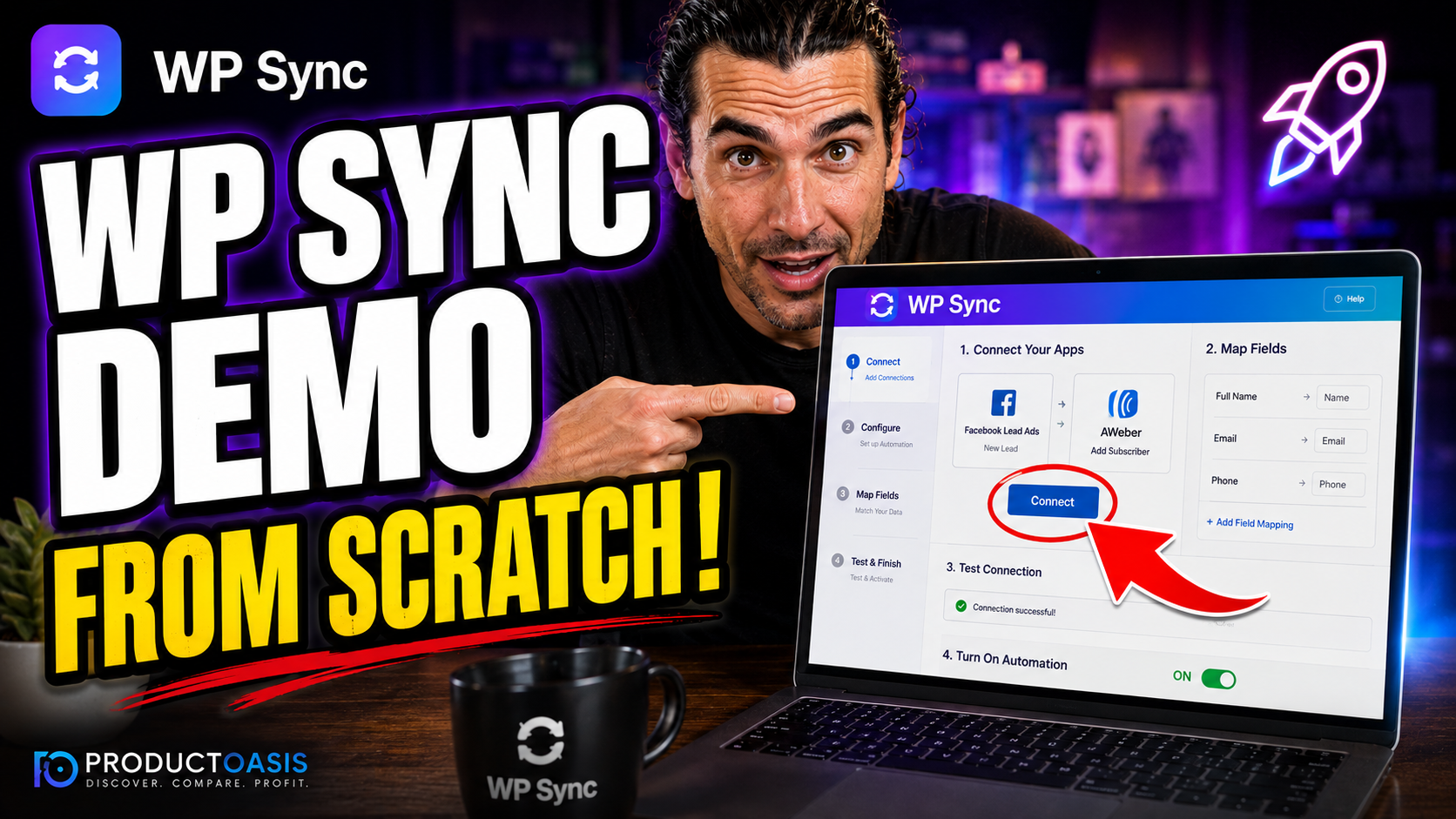
WP Sync Demo and Walkthrough: How to Connect Apps and Automate Data
Reading feature lists only gets you so far when you’re trying to decide if a new plugin will actually work for your setup. That’s usually when people go looking for a WP Sync demo instead of another sales page.
In simple terms, the WP Sync demo shows exactly how the plugin connects two apps and moves data between them automatically, without any code. You paste an API key, build a bridge, and it runs on its own from there. You can watch the full walkthrough on the official page here before setting it up yourself.
What Does The WP Sync Demo Actually Show?
Most demos for automation tools get complicated fast. However, WP Sync keeps the process to three simple steps, which is part of why it’s built for beginners.
The key idea is that you’re not writing code or configuring webhooks manually. Instead, you’re picking a source, picking a destination, and letting the plugin handle the rest.
How Do You Actually Connect Apps In WP Sync?
Here’s what actually matters if you’re following along with the demo yourself. The setup happens directly inside your WordPress dashboard.
What Are The Exact Steps Shown In The Walkthrough?
The WP Sync demo typically walks through this sequence:
- Paste your API key for an app like AWeber or Facebook Lead Ads, then test the connection
- Click Create Bridge, choose your source and destination, and map your tags and fields
- Save the bridge and let WP Sync sync new data automatically every 5 minutes
Once that bridge is live, therefore, you never have to repeat the setup for that connection again. New contacts flow through on their own.
What Happens After You Build Your First Bridge?
This is where the demo becomes genuinely useful rather than just a feature tour. Picture connecting Facebook Lead Ads to AWeber as your first automation.
As soon as someone fills out your lead ad, WP Sync grabs that contact and adds them to your list within minutes, tagged correctly for your welcome sequence. Consequently, you see leads landing in real time instead of waiting for a manual export.
The dry run test is also worth watching in the demo, since it lets you simulate a contact through your bridge before anything actually sends. So mapping mistakes get caught early instead of after real subscribers are affected.
Compared to Zapier’s setup process, which involves task-based zaps and multiple step configurations, WP Sync’s demo shows a noticeably shorter path from connection to live automation. I cover this full setup process, along with pricing and every connected app, in my complete WP Sync review.
Is The WP Sync Demo Enough To Decide If It’s Right For You?
For most people, yes. Watching the WP Sync demo answers the practical question of whether the setup matches your comfort level with tools like this, and it usually takes less than ten minutes to see the whole process.
To sum up, the WP Sync demo makes it clear the plugin does what it claims, connecting apps and automating data without technical friction. If you want the full pricing, bonuses and OTO breakdown before you buy, my detailed WP Sync review has everything in one place.